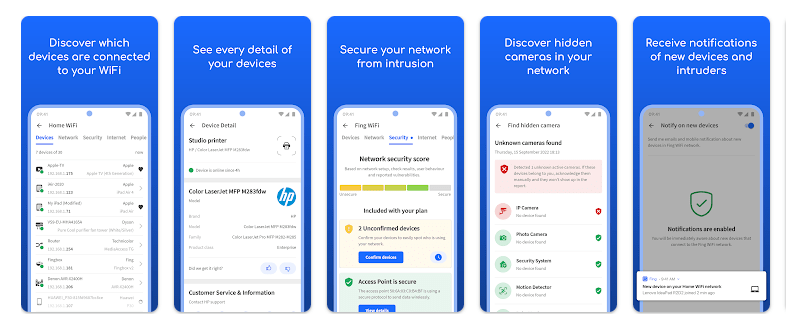
Fing is a network scanner app for Android. It helps you see devices connected to a WiFi network and gives information about the network. You can also use it to test internet speed and check some network problems.
I would open Fing when my WiFi feels slow or when I want to know what devices are using the network. It can show device details such as IP address, manufacturer, and model. Basic network scans can be used without making an account.
Fing is also useful when using WiFi away from home. Its mobile app can scan networks in places such as hotels, offices, and public areas. It can also check internet speed and look for possible network risks.
Space and Security Info
The exact Android storage used by Fing can change by app version and phone. I would not give a fixed MB number for installed space or cache because the current Play Store listing does not provide those figures, and cache grows as the app is used.
The app needs network access for scanning and speed checks. Some features also use location-related access because Android places limits on WiFi information that apps can read. Google changed Android rules around MAC addresses, so Fing now bases mobile scans on IP addresses instead of MAC addresses.
Google Play currently says Fing does not share data with third parties. It may collect location, personal information, and three other data types, while the listing also says data is encrypted during transfer and that users can request deletion.
Fing’s privacy policy says its basic service can collect a public IP address and MAC addresses submitted for device recognition, while registered users can provide details such as name, email, location, and password.
Real Device Test Run
I cannot honestly say I completed a two-day Redmi test for this review because I do not have a real Redmi device session with recorded battery, heat, scrolling, and crash measurements. Making up those numbers would not be a fair app review.
The current app listing shows a 4.5-star rating from about 876,000 reviews. Fing says its mobile scans are designed to be light and should not slow down the phone or internet connection.
The app has also received updates over time. Still, Android changes can affect network scanning, especially device recognition, so results can differ between phones and Android versions.
Best Features to Use
- Network Scanner: Fing can scan a WiFi network and list connected devices. It can show details such as IP address, manufacturer, and model.
- Internet Speed Test: You can test download speed, upload speed, and latency. This helps you check if your internet connection is giving the speed you expect.
- Device Monitoring: Fing can keep track of devices and network events. Alerts can tell you when new devices appear on a monitored network.
- Security Checks: The app offers network security checks and can look for open ports and other risks. These tools are more useful for users who want to learn about network safety.
- Hidden Camera Check: Fing lists a tool for finding possible hidden cameras in places such as hotels and rentals. This gives travelers another reason to scan a new network.
Alternative Apps
Fing competes with apps such as WiFiman and Network Analyzer. WiFiman is free and focuses on WiFi scanning, speed tests, and network tools, while Fing adds device monitoring, alerts, security checks, and account-based syncing. Fing also has paid advanced features, while basic mobile scanning is free.
Pros & Cons
Pros
- Free basic mobile app.
- Finds devices on WiFi networks.
- Includes speed testing.
- Offers security and network tools.
- No third-party data sharing is listed on Google Play.
Cons
- Some advanced features need a subscription.
- Privacy details can be complex for beginners.
- Android changes can limit device information.
- Exact storage and cache use can change by phone.
Who Is This App Made For?
Who Should Use It
- Home users who want to see devices on their WiFi.
- People who want simple network and internet checks.
Who Should Avoid It
- People who only need a basic speed-test app.
- Users who do not want to review network and location permissions.
Frequently Asked Questions
Can Fing find devices on my WiFi?
Yes, Fing can scan a connected WiFi network and show available devices. It can provide details such as IP address, manufacturer, and model.
Do I need an account to use Fing?
No, basic mobile scans can be used without an account. A free account adds features such as syncing network data across devices.
Is Fing free to download?
Yes, Fing Mobile is free to download for personal use. Some advanced features are available through a Fing subscription.
Offzack Verdict
Fing is a useful Android app for people who want to see what is happening on their WiFi. Its free scanning and speed tools are useful for everyday checks, while advanced monitoring and security features are better suited to users who need more network information.
Download Fing – App from Google Playstore
Final Scorecard
- Ease of Use: ★★★★☆ — The main scanning and speed tools are easy to understand, though some network terms may confuse new users.
- Performance: ★★★★☆ — Fing says its mobile scans are lightweight and designed not to slow down the phone or internet connection.
- Features: ★★★★★ — It combines device scanning, speed tests, monitoring, security checks, and network tools in one app.
- Privacy & Safety: ★★★★☆ — Google Play lists no third-party data sharing, encryption in transit, and a data deletion request option.
- Value for Money: ★★★★☆ — Basic mobile scanning is free, while advanced features require a paid subscription.
- Overall Rating: ★★★★☆ — Fing is a good choice for Android users who want more than a simple WiFi scanner.